
Revenue is vanity, profit is sanity.
You can hit six figures in a month and still be broke at tax time. We’ve seen it happen more times than we can count.
The culprit? Most Shopify merchants have no idea what their actual Cost of Goods Sold (COGS) is. They know what they paid the supplier, sure.
But shipping? Duties? Storage? That’s where the math gets fuzzy.
This guide will help you move beyond counting units and start tracking the numbers that matter so every sale you make is genuinely profitable, not just busy work.
We are a Shopify marketing agency led by Jack Paxton, a highly-regarded eCommerce marketing expert. This article is written from our own perspective, so reach out if you have questions.
Understanding the “Cost Per Item” Field
Everything starts with Shopify’s Cost per item field. You’ll find it in the pricing section of every product variant, and it’s the brain behind all your profit reports.
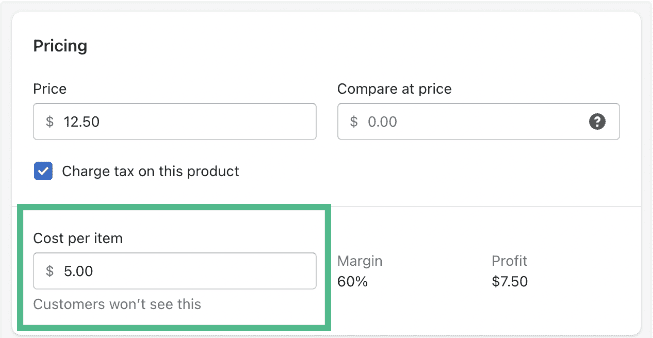
How it works: Enter your inventory cost here, and Shopify automatically calculates your margin and gross profit for every sale.
The gotcha: This field is not retroactive. If you sold 100 units with the cost set to zero, then update it to $10, Shopify won’t go back and fix your past sales. Those reports are cooked.
Why you can’t skip this: Without cost data, your “Profit” reports are just your “Gross Sales” reports wearing a fake mustache. You’re lying to yourself about how healthy your business actually is.
Method 1: Manual Tracking & Bulk Editing
If you’ve got a manageable catalog, manual updates are totally fine. You don’t need fancy software—you just need to actually do it.
The Bulk Editor: Go to Products, select everything, hit Bulk Edit. Add the “Cost per item” column and tab through like a spreadsheet. Done.
CSV Uploads: For bigger catalogs, export your products to CSV, open it in Excel or Google Sheets, find the Variant Cost column, fill it in, and re-import. Just make sure to select “Overwrite any current products that have the same handle.”
The downside: This is set-and-forget. When your supplier raises prices next quarter (and they will), you have to remember to update everything again. If you don’t, your margin data slowly rots.
Method 2: Landed Cost vs. Unit Cost
Here’s where most people make mistakes: they think the factory price is the cost. It’s not. Not even close.
You need to calculate your Landed Cost: the total price of getting a product to your warehouse. That includes:
- Unit Price: What the manufacturer charged
- Freight: Shipping by sea, air, or truck
- Customs & Duties: Import taxes and brokerage fees
- Packaging: Boxes, labels, inserts, tape
Here is the formula to track landed cost:

If you’re only tracking the unit price, you’re letting your team burn money on products that are secretly expensive to get into the country. Don’t do that.
Method 3: Using Shopify Reports for Financial Clarity
Once you’ve got cost data in place, Shopify’s Analytics section stops being a vanity dashboard and starts being useful.
- Profit by Product Report: This tells you which products are heroes and which are zombies. High sales volume means nothing if the margin is garbage.
- Inventory Value Report: Critical for year-end accounting. Shows you exactly how much cash is sitting in boxes on shelves.
- Product ABC Analysis: Categorizes your inventory. A-grade items drive 80% of your revenue. If you’re only going to track costs for some products, start with these.
Inventory Valuation: FIFO vs. Average Cost
What happens when you buy the same product at different prices over time?
Shopify uses Average Cost logic by default. Buy 50 units at $10, then 50 more at $12, and Shopify values your inventory at $11.
But many accountants prefer FIFO (First-In, First-Out), where the oldest stock gets “sold” first.
If your CPA insists on FIFO for tax purposes, Shopify’s native tools won’t cut it—you’ll need a dedicated inventory app.
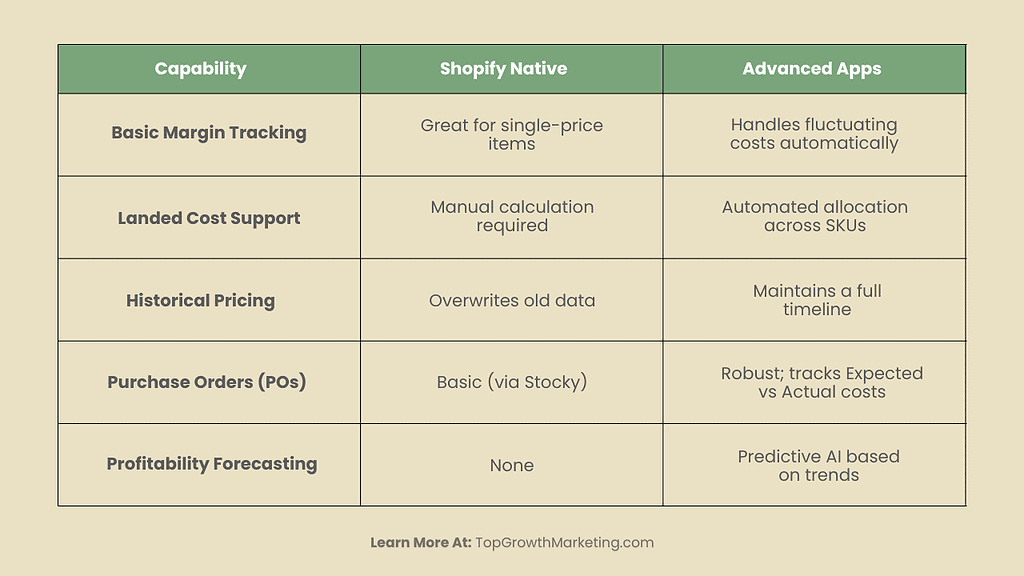
Strategic Comparison: Shopify Native vs. Advanced Tools
Here’s how to know if you’ve outgrown the basics:
Method 4: Advanced Cost Tracking with Inventory Apps
If you’re dealing with international suppliers, multiple currencies, or prices that change monthly, Shopify’s native setup will eventually fail you. That’s when apps become worth it.
Stocky (by Shopify): If you use Shopify POS, this is a solid bridge. Create Purchase Orders and “receive” stock at specific costs.
Prediko: The gold standard for serious brands. Deep financial tracking, COGS trend analysis, and forecasting that tells you exactly how much cash you need for your next production run.
Cloud Accounting Sync: Tools like A2X connect Shopify to QuickBooks or Xero so your bookkeeper sees the same numbers you do. No more month-end reconciliation nightmares.
Common Pitfalls & How to Avoid Them
There are few things you need to consider when you want to track inventory costs in Shopiify:
Ignoring Currency Fluctuations: If you pay in USD but sell in GBP, a 5% exchange rate swing can quietly erase your profit. Use a conservative average exchange rate when setting costs.
Forgetting Returns: When a customer returns something damaged that you can’t resell, that cost needs to move from “Inventory Asset” to “Loss.” Don’t let broken products haunt your margin reports.
Putting Shipping in the Wrong Place: Some merchants dump shipping into “Operating Expenses” instead of COGS. Both affect net profit, but only COGS gives you an accurate Gross Margin.
Action Plan For Tracking Costs in Shopify
You can’t scale what you don’t measure. Tracking inventory costs is what separates businesses from expensive hobbies. Once you shift to a “Landed Cost” mindset, you’ll have the clarity to spend aggressively on marketing and restock with confidence.
Your 3-Step Action Plan:
- Audit: Export your products today. How many are missing a “Cost per item”? Fix that.
- Calculate: Run the Landed Cost formula for your top 5 bestsellers. Prepare to be surprised (and maybe a little horrified).
- Automate: If you’ve got 50+ SKUs and costs that change regularly, try an app like Prediko. Your future self will thank you.
Stop celebrating revenue. Start protecting profit.
If you want someone to take care of this for you as well as manage advertising and other operations, reach out.




0 Comments